The Shopping Cart feature makes it easy to purchase multiple items in a single transaction. Instead of checking out each product individually, you can add items to your cart, review your selections, and complete your purchase all at once.
Accessing Your Cart
You can access your shopping cart at any time by selecting the Cart icon located in the top navigation bar of the Marketplace.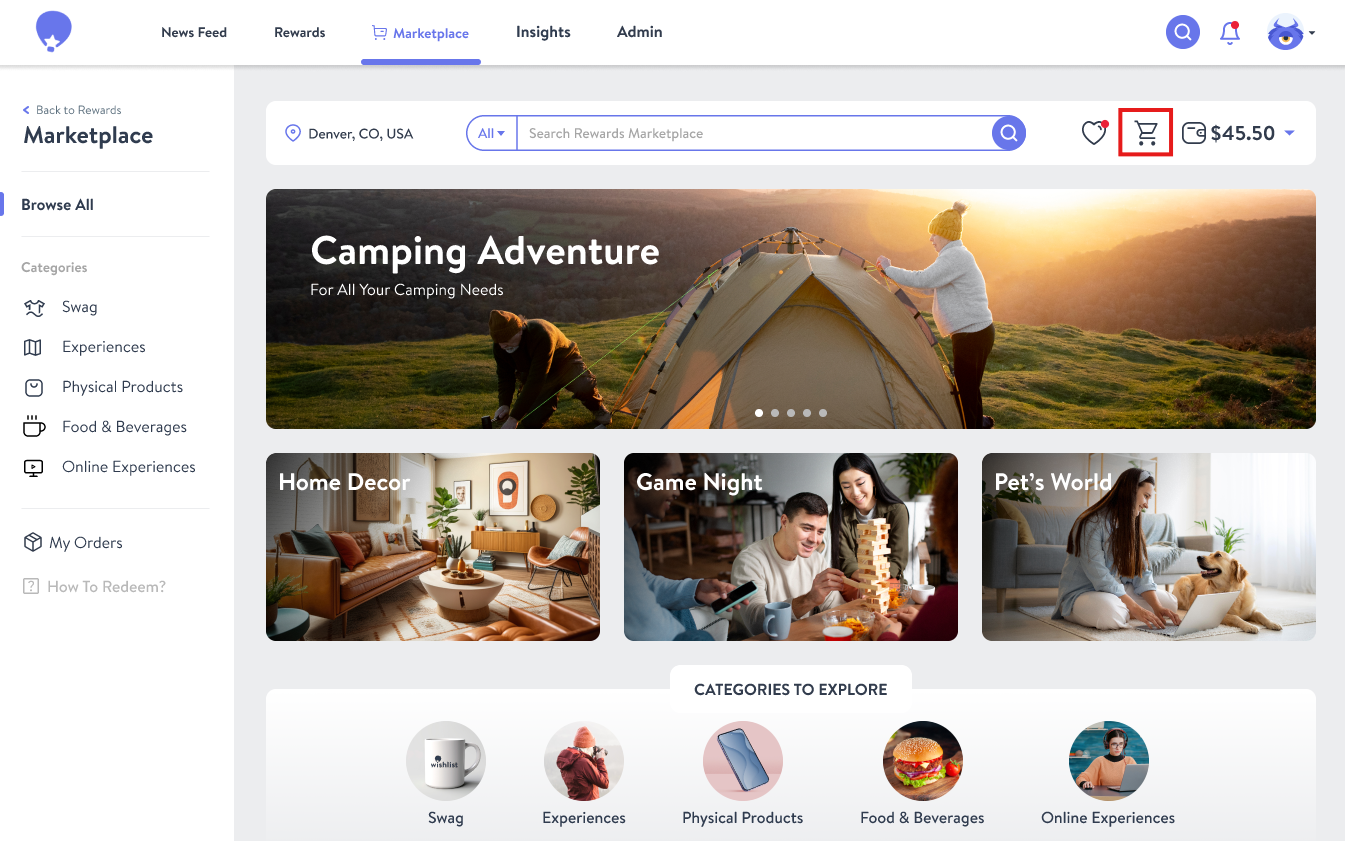
Adding Items to Your Cart
To add an item to your cart:
- Browse the Marketplace and select a product.
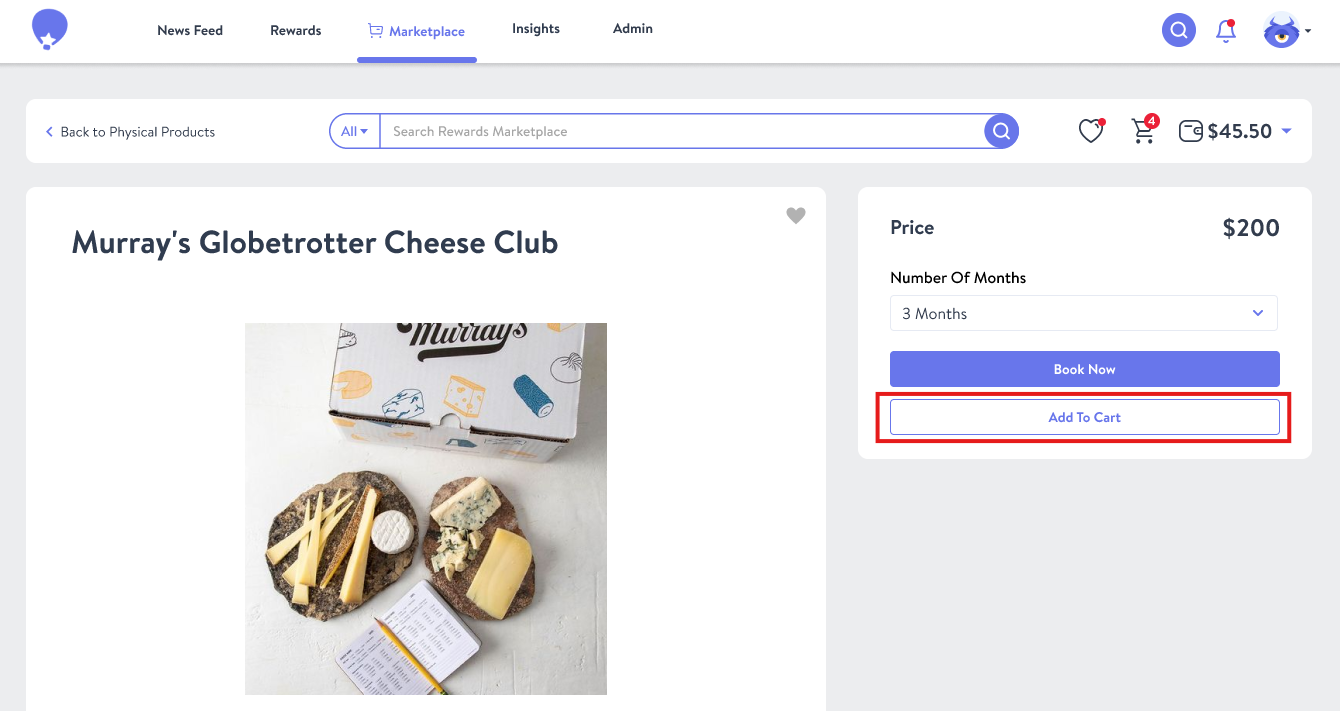
- On the Product Details page, click Add to Cart.
- A confirmation message will appear, indicating that the item has been successfully added to your cart.
Viewing and Managing Your Cart
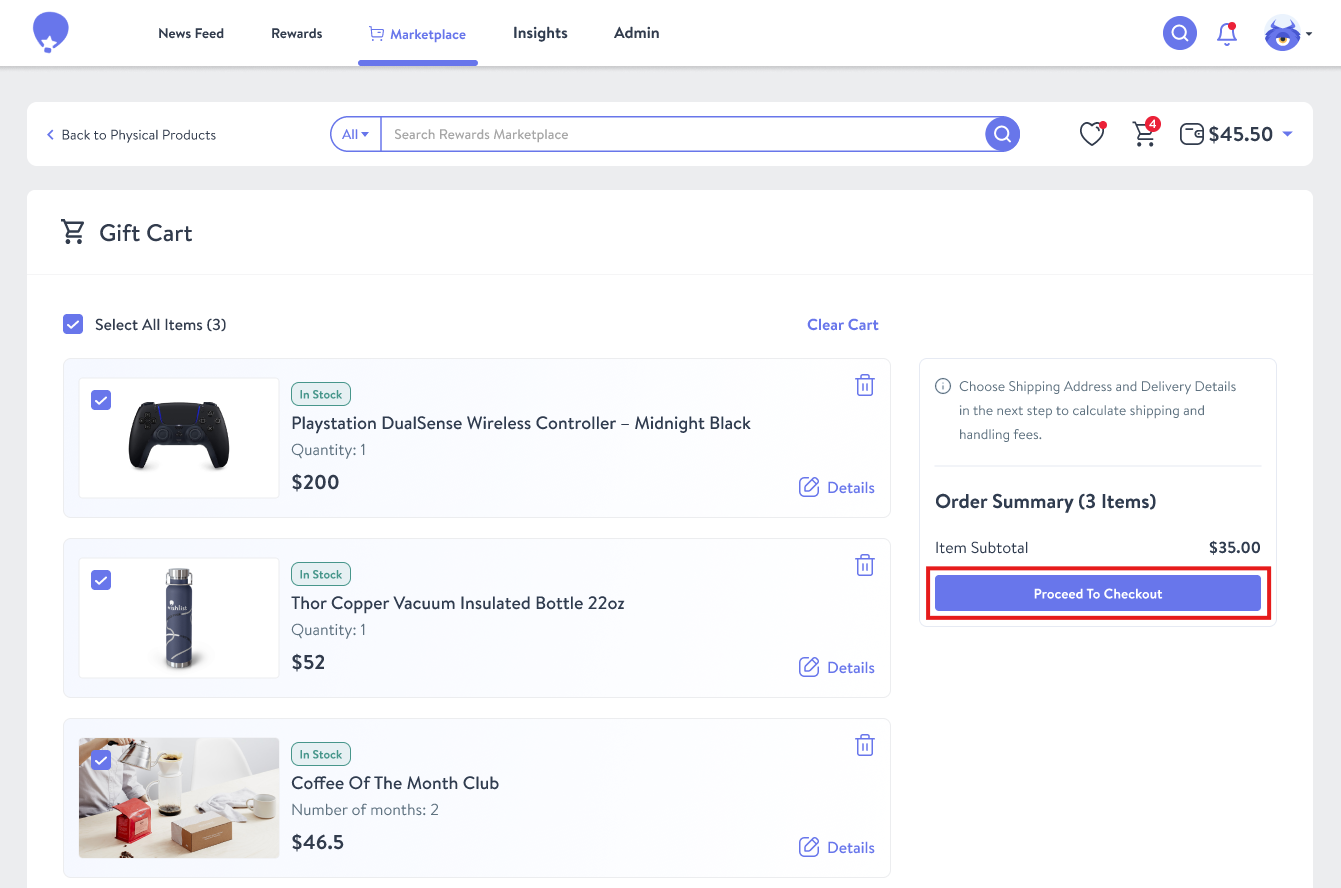
To review your selections, click the Cart icon.
From your cart, you can:
- View all items currently in your cart.
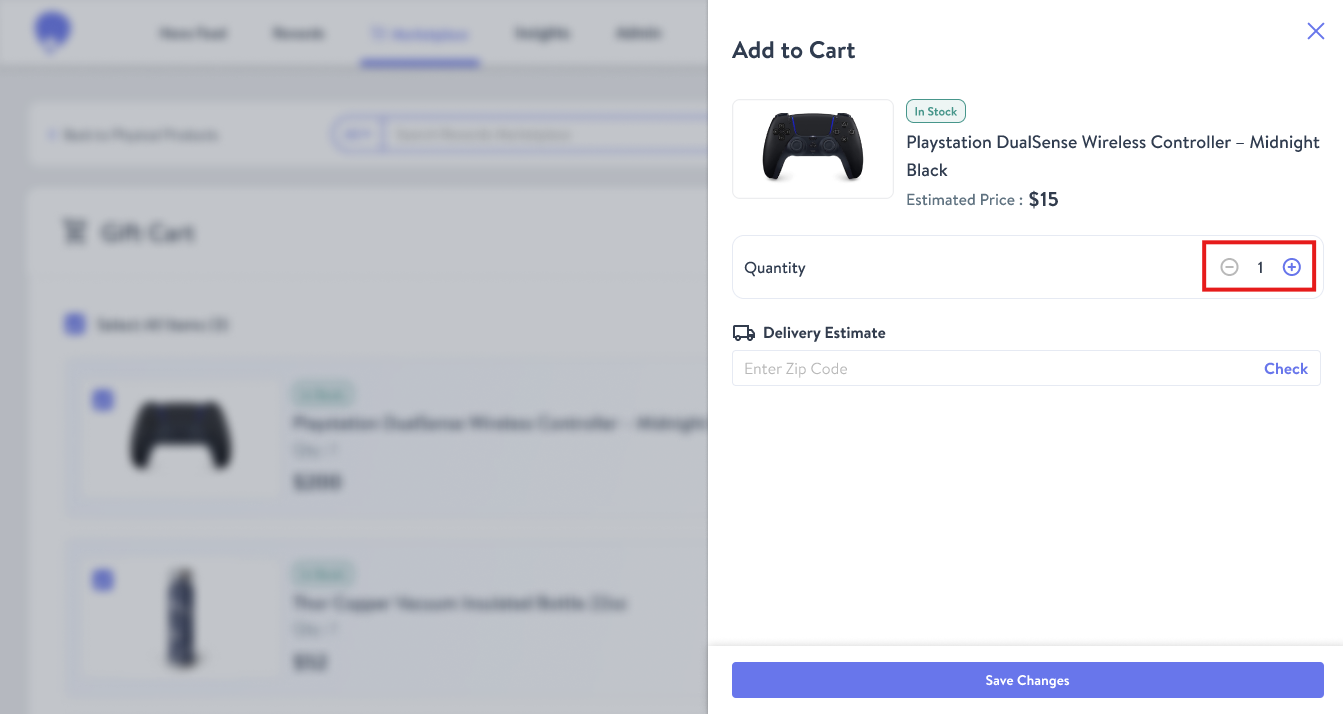
- Adjust the quantity of each item.
- Update item details or attributes by selecting the Details (pencil) icon.
- Remove items by selecting the Trash Can icon.
Completing Your Purchase
When you're ready to place your order:
- Select Proceed to Checkout.
- Enter your shipping address and any required order information.
- Select Proceed to Checkout again to continue.
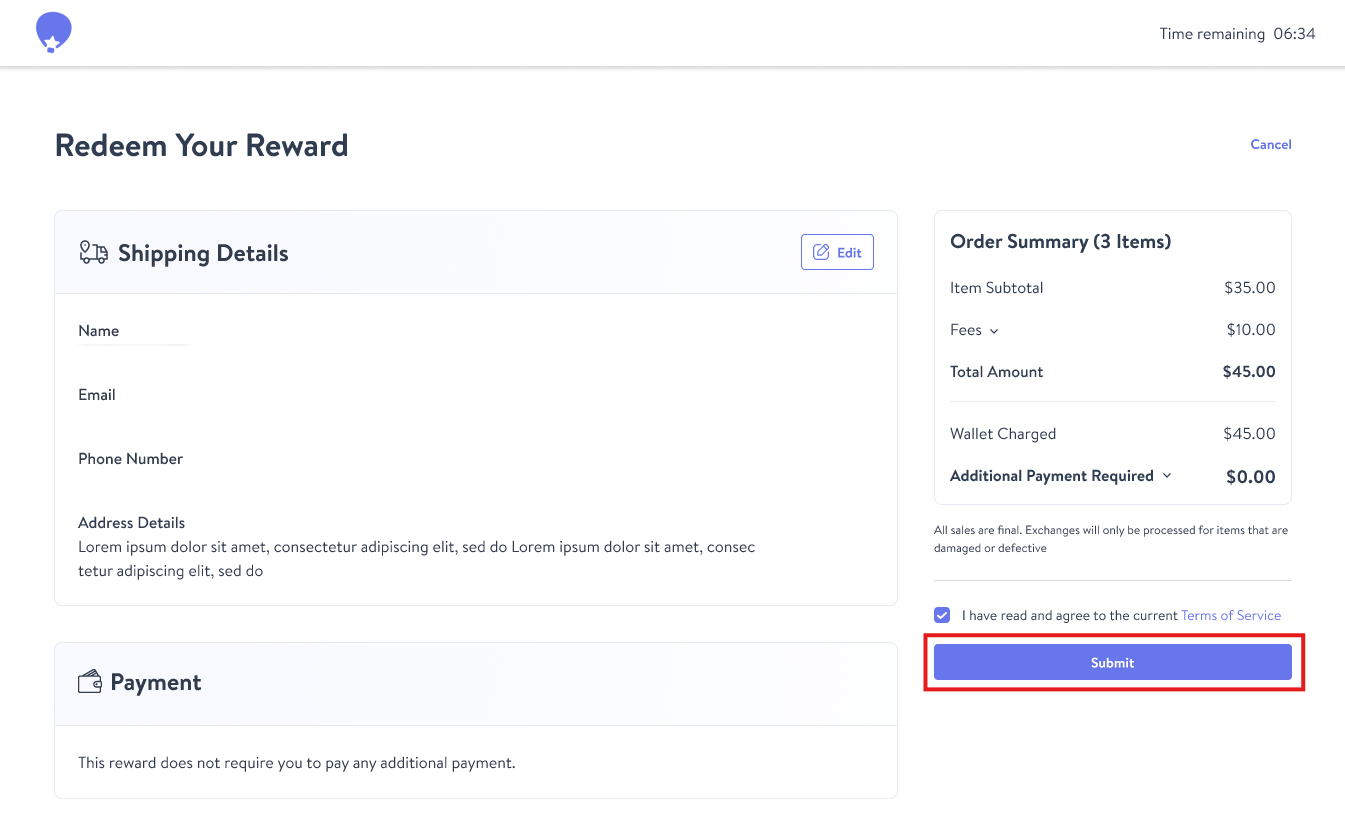
- Review your order details carefully.
- Confirm any applicable taxes and shipping fees.
- Select Submit to complete your purchase.
Important Information About Shipping
Wishlist partners with multiple vendors to provide a wide range of products and experiences. If your cart contains items from different vendors, shipping charges may be calculated separately for each item. As a result, you may see multiple shipping fees reflected during checkout.
Need Help?
If you have any questions about using the Shopping Cart feature or placing an order, please contact Support at wishlist@thrivepass.com.